
Direct Answer
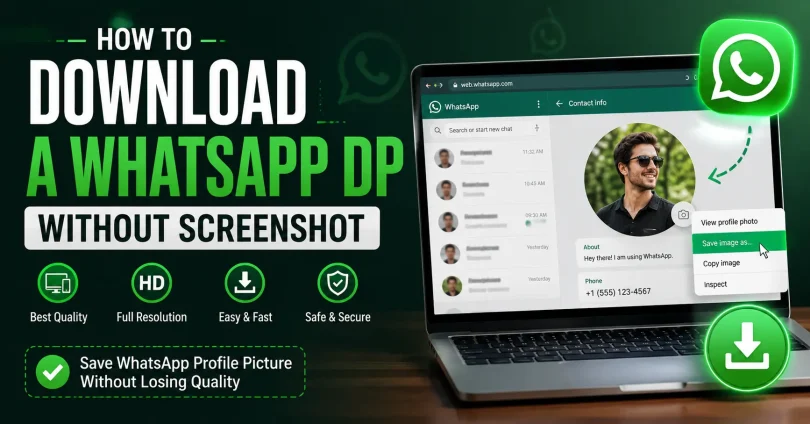
The cleanest way how to download a whatsApp dp without screenshot is through WhatsApp Web or the desktop app: open the contact, click their profile photo to enlarge it, then right-click and choose “Save image as.” This pulls the actual image file instead of a compressed screen capture, so quality stays intact. It only works if the person’s privacy setting lets you view their photo in the first place, which is worth understanding before you try any third-party tool.
Why a Screenshot Is the Wrong Tool for This Job
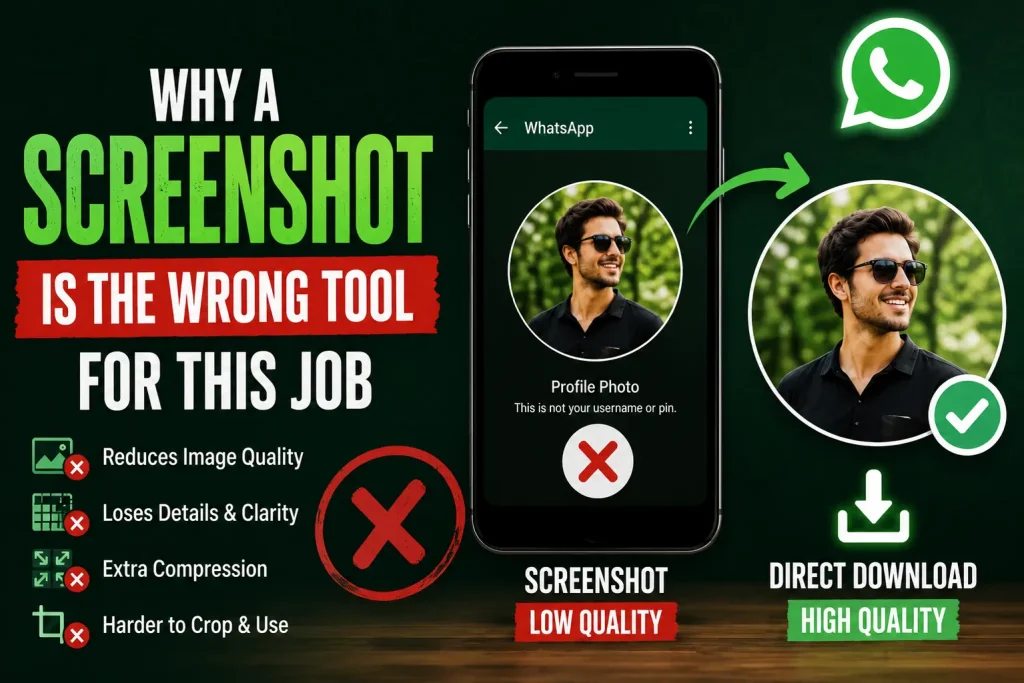
A screenshot re-encodes whatever is on your screen, including your phone’s resolution, brightness curve, and whatever compression your OS applies to the capture. On most phones that means you lose 20 to 40 percent of the original detail before you’ve even cropped it. Saving the actual file skips all of that, since you’re grabbing the same bytes WhatsApp’s server sent to your device, not a picture of a picture.
There’s a practical reason this matters beyond vanity. If you’re saving a profile photo to confirm someone’s identity, cross-reference it with another platform, or just keep a decent record for a shared contacts list, a soft, artifact-heavy screenshot makes that harder than it needs to be.
Method 1: WhatsApp Web or Desktop App (Best Quality)
This is the method every experienced WhatsApp user eventually lands on, and for good reason: it bypasses the mobile app’s screenshot block entirely because that restriction was never built into the web or desktop client.
- Open web.whatsapp.com in a browser, or launch the WhatsApp desktop app.
- Scan the QR code with your phone’s WhatsApp (Settings > Linked Devices) to link the session.
- Open the chat with the contact whose photo you want.
- Click their name at the top of the chat to open the contact info panel.
- Click the profile photo thumbnail to expand it to full size.
- Right-click the expanded image and choose “Save image as,” then pick a folder.
A detail almost every guide gets wrong: older versions of WhatsApp Web sometimes save the file with a .enc extension instead of .jpg or .png, which makes it look “broken” in your downloads folder. If that happens, just rename the file extension to .jpg manually; the image data underneath is fine, it’s only the file label that’s off. This has tripped up a lot of readers who assume the download failed.
Method 2: Third-Party DP Downloader Tools
Sites like Toolzin’s WhatsApp DP Downloader work differently. Instead of logging into your own WhatsApp account, you type in the target’s phone number and country code, and the tool queries WhatsApp’s public-facing servers directly.
The part competitors bury in a footnote: these tools only return a photo if that person’s privacy setting for “Profile Photo” is set to Everyone. If it’s set to My Contacts or Nobody, the request comes back empty, no matter how good the tool claims to be. This isn’t a bug, it’s WhatsApp’s own access control working as designed. So before you assume a downloader tool is broken, check whether the number you’re testing even has a public photo.
- No login required. You don’t link your own account, which some people prefer for privacy reasons.
- Works cross-platform. Usable from any phone or desktop browser without installing WhatsApp Web.
- Limited by the target’s settings. Only pulls photos already set to public visibility.
- Quality varies by service. Some tools re-compress the image on their end before serving it to you, which defeats the point if quality is why you avoided a screenshot.
Method 3: Business API Access (For Developers and CRMs)
If you’re building something like a customer support tool, CRM integration, or contact-sync feature rather than saving one photo by hand, the WhatsApp Business API (offered through providers like Whapi.Cloud) exposes a direct endpoint for fetching a contact’s profile picture URL programmatically.
This route is meant for businesses that already have an opted-in relationship with the customer, think order confirmations or support tickets, not for pulling random numbers’ photos at scale. Rate limits and WhatsApp’s business policies apply, and most providers require you to have a verified business account before the endpoint responds with anything.
Quick Comparison: Which Method Actually Fits Your Situation
| Method | Quality | Setup Needed | Best For |
| WhatsApp Web / Desktop | Full original resolution | Link device via QR code | Saving a contact’s photo you can already see in-app |
| Third-party DP downloader | Depends on the tool | None, just the phone number | Numbers not saved in your contacts, if their photo is public |
| Business API | Original resolution via URL | Verified business account | Apps, CRMs, and support tools handling many contacts |
| Screenshot | Lowest, recompressed | None | Quick reference only, not worth doing anymore given the alternatives |
The Privacy Setting Nobody Explains Properly
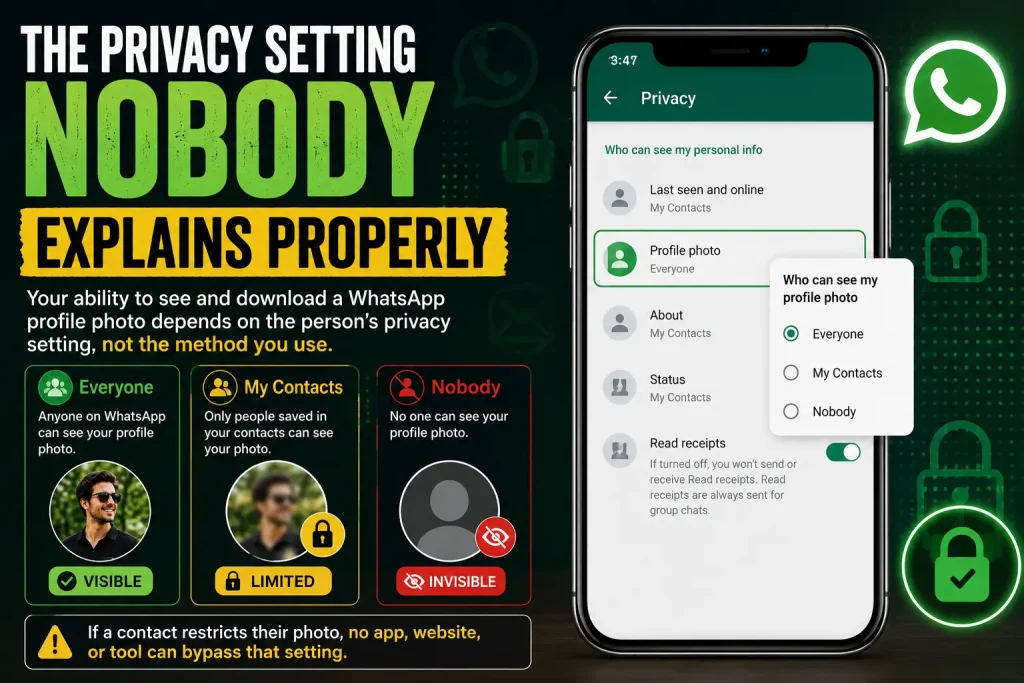
Here’s the piece most tutorials skip entirely. WhatsApp gives every user three options for who can see their profile photo: Everyone, My Contacts, and Nobody. Your own ability to view (and therefore save) someone’s DP is governed entirely by that setting, not by which download method you pick.
If a contact has their photo restricted to My Contacts and you’re not saved in their phone under a matching number, you simply won’t see an image at all in WhatsApp Web, in the app, or in any third-party tool. No downloader, however well built, can pull an image the platform itself is refusing to serve to you. Anyone advertising a tool that claims to bypass this restriction is either misrepresenting what it does or asking you to trust it with data it shouldn’t have access to.
Using Someone’s Photo Responsibly
This is worth a straight paragraph rather than a vague disclaimer. Saving a friend’s or coworker’s profile photo to keep your contacts organized is a completely different thing from saving a stranger’s photo to use elsewhere without asking.
- Ask before reposting or reusing someone’s DP anywhere public, even if it was easy to grab.
- Treat a restricted privacy setting as a signal, not an obstacle to route around.
- If you’re building a product around this (a CRM, a support bot, anything at scale) get explicit consent baked into your onboarding flow rather than relying on the API being technically accessible.
Frequently Asked Questions
Can I download a WhatsApp DP if the person has hidden it from me?
No. If someone’s profile photo privacy is set to My Contacts and you aren’t saved in their phone, or it’s set to Nobody, no method, web, desktop, or third-party tool, will retrieve it. The image simply isn’t served to your account.
Why does my downloaded WhatsApp photo open as a .enc file?
WhatsApp Web occasionally labels the saved file with a .enc extension due to how the browser interprets the download stream. The image data is intact; renaming the file extension to .jpg or .png in your file explorer usually fixes it instantly.
Is it legal to download someone’s WhatsApp profile picture?
Viewing and saving a photo that someone has already made visible to you isn’t illegal in most places, since it’s public-facing content by their own privacy setting. Using that photo to harass, impersonate, or misrepresent someone is a separate matter and can carry legal consequences depending on your country’s privacy and harassment laws.
Do third-party WhatsApp DP downloader sites store the numbers I search?
It depends entirely on the provider. Reputable tools state a no-log policy explicitly on their site. Since you’re handing over a real phone number, it’s worth checking that policy before using any tool you haven’t vetted, the same way you’d check a site’s privacy policy before entering any personal data.
Conclusion
Downloading a WhatsApp profile picture without taking a screenshot is possible, but the best method depends on your situation and the other person’s privacy settings. As explained throughout this guide, WhatsApp Web or the desktop app offers the highest-quality results by saving the original image instead of a compressed screen capture. Third-party tools may work for public profile photos, while the WhatsApp Business API is better suited for developers and business applications. Most importantly, always respect user privacy and use someone’s profile photo responsibly. By following the methods outlined in this guide, you can download a WhatsApp DP efficiently while maintaining image quality and staying within WhatsApp’s privacy rules.
You May Also Like It:
How to Stop Stomach Burning Immediately